
Getting started: your first test GIF
Set up your booth and send a test GIF to your own phone before your first event.
Create your password, or sign in.
On your computer, create your password with the "Create a Password" button in the email we sent when your trial started. Already have an account? Go to app.mvbth.com/sign-in and click "Sign In." Forgot your password? Click "forgot your password?" on that page.
What you'll need
- Your iPad, on Wi-Fi
- A computer, to use your dashboard
- Your phone, to get the test GIF
- The "Get Movebooth on your iPad" email (new accounts also get a "Create a Password" email). No email? Follow our download guide.
Make your first channel (your booth's look and photo gallery).
Sign in to your dashboard on a computer, at app.mvbth.com/sign-in or with Login at the top of this page, and click "New Channel." On the "Basic Info" tab, fill in "Account Name," "Channel/Gallery Name" and "Gallery URL." For the quickest start, pick "Use a Movebooth theme" on that tab. Then click "Save and Next." On the "Theme" tab, click a theme. There's no button to press here; the "Logo" tab opens on its own. On the "Logo" tab, click "Save and Next." On the "Photos" tab, under "Capture Mode," pick "Classic GIF," then click "Save & continue." On the "Sharing" tab, click "Save" to finish. Want your own frames instead? See Creating a channel (your booth's look and photo gallery).
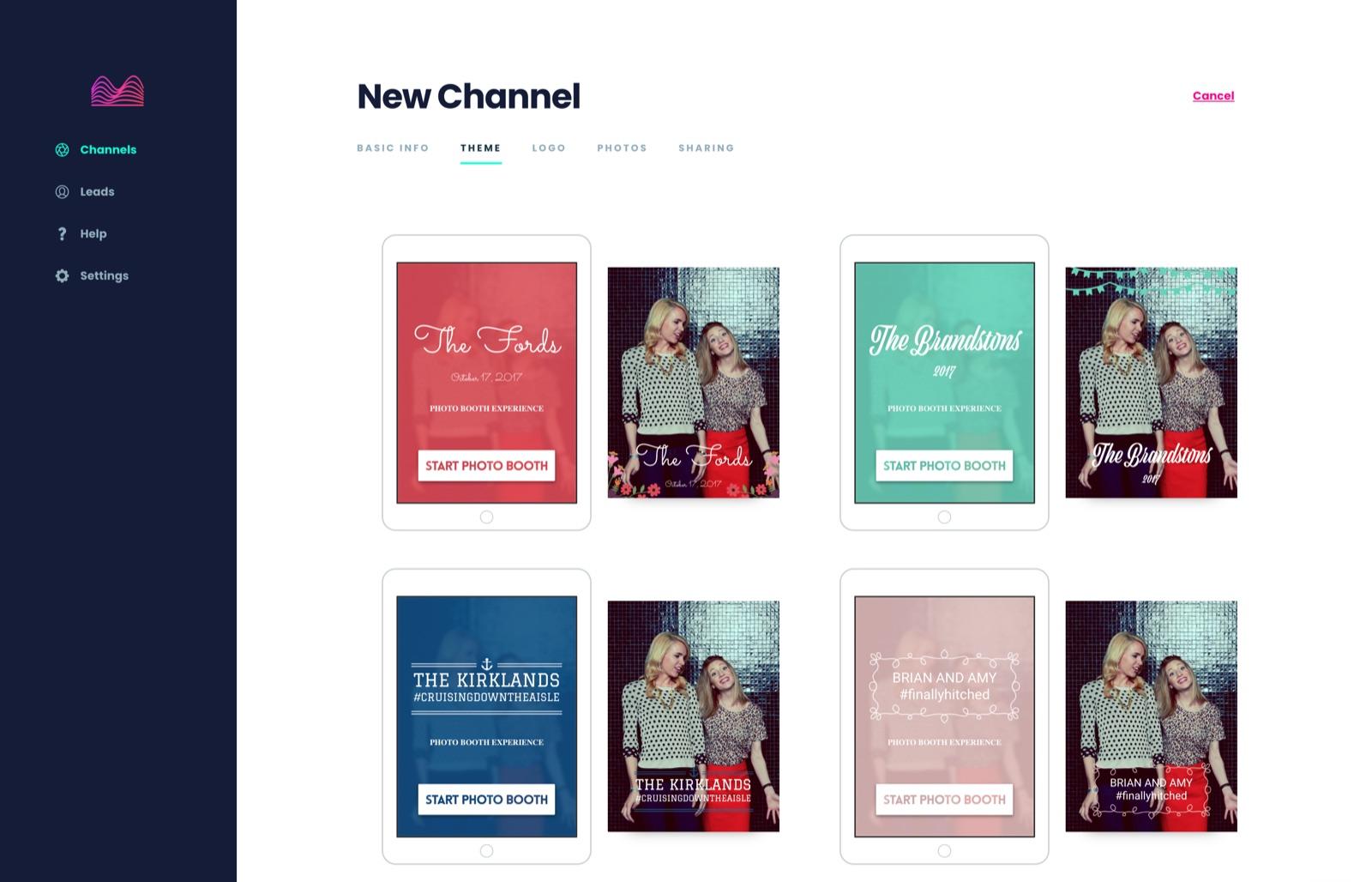
Choosing a Movebooth theme on your dashboard. Install the app.
On your iPad, open the email titled "Get Movebooth on your iPad" and tap the link. It asks you to get Apple's free TestFlight app first. Once that's installed, go back to the email and tap the link again, tap View in TestFlight, tap Accept if asked, and tap Install. No email? Follow our download guide.
Pip at Movebooth
Get Movebooth on your iPad
Next, get the Movebooth app onto your iPad. We use Apple's private distribution on their TestFlight app instead of the App Store. Tap this on your iPad to install it:
(install link)
The email to look for. Sign in on the iPad and pick your channel.
Open Movebooth and tap "Sign in with Email + Password," then enter your email and password. Or tap "Request a Login Code" and enter your account email. The code is a QR code, and it arrives by email. On the same screen, tap "Scan a Login Code" and point the iPad's front camera at the QR code in that email on your phone or computer. Tapping the link in that email on the iPad works too. Then pick the channel you made in step 2.
Tip: get the code by text
When you tap "Request a Login Code," you can add a phone number to get the QR code by text as well as email.
Take a test GIF.
Tap the start button and take a GIF. When it asks where to send it, enter your own phone number or email.
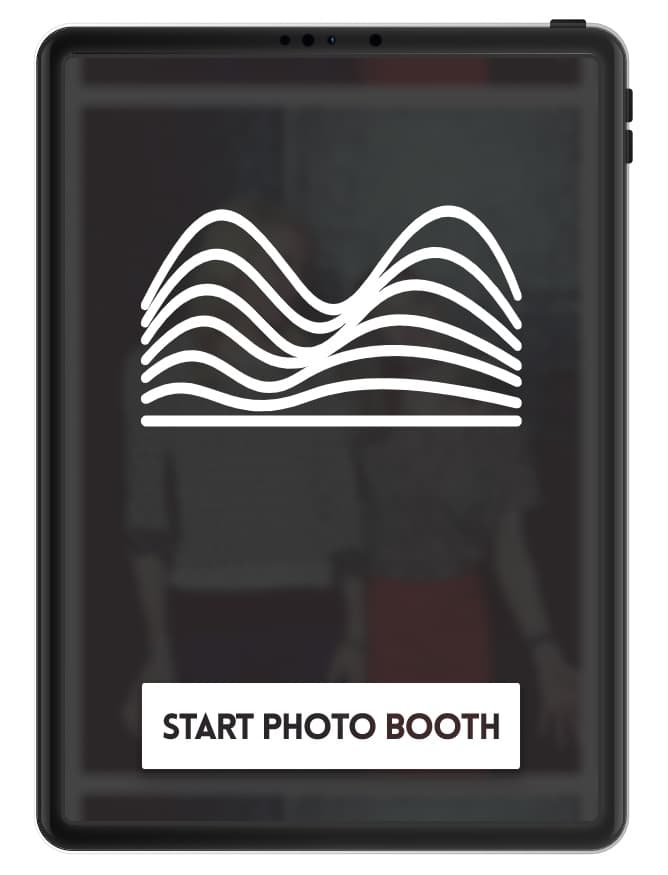
The app's start screen. Check that it arrived.
Look for it on your phone or in your inbox. If it hasn't come, check that the iPad is on Wi-Fi.
What guests get
Their photo, GIF, or boomerang, by text or email, in your channel's look.
Questions? Tap the chat button. It's at the bottom right of every page.